CalDigit TS4

DESKTOP CONNECTIONS · START WITH A PORT PLAN

Come back to a desk that is ready.

CalDigit TS4 gathers displays, storage, cards, audio and network connections around one compatible host link. Its value is easiest to understand when you draw the desk you want to connect, then check the computer that will drive it.

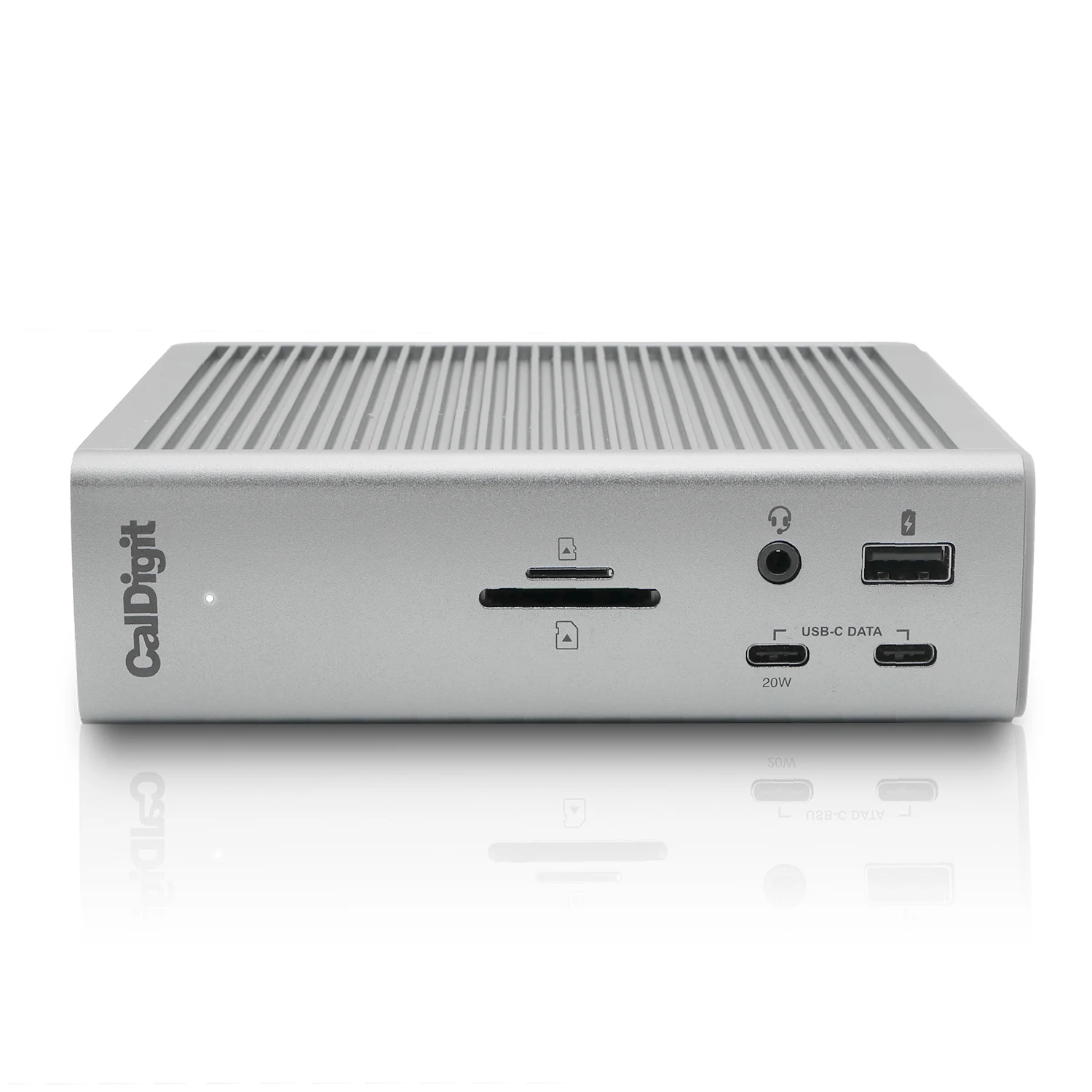
CalDigit TS4 horizontal front product view
CalDigit TS4
18Connectivity ports
98 WMaximum host power delivery
40 Gb/sThunderbolt 4 link
2.5 GbEEthernet · compatible host required
01

01

Power has a ceiling

The dock supplies up to 98 W to a compatible laptop. That can simplify the daily connection, but a demanding computer may still need its original charger under heavy load. The included 230 W supply powers the whole dock; it is not 230 W laptop charging.
02

Displays follow the computer

Base M1 and M2 Macs support one external display through this arrangement. Compatible Pro, Max, Ultra and Intel systems can support more, with exact-model and resolution conditions. The dock cannot create display capability absent from the host.

03

Ports with different jobs

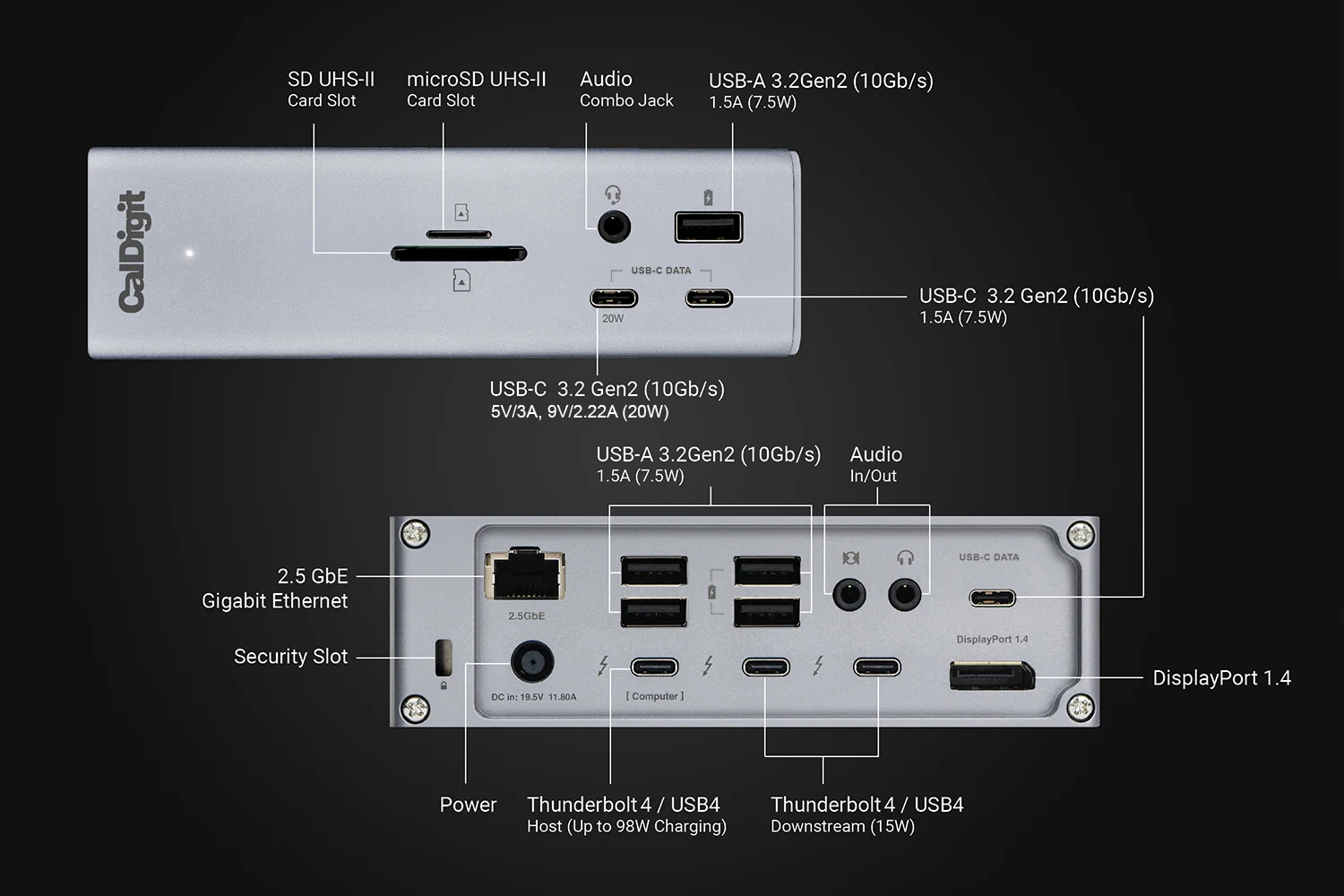
The regular USB-C data ports are not monitor outputs. Use DisplayPort or the downstream Thunderbolt ports for screens. The 2.5GbE port also needs a compatible Thunderbolt or PCIe-capable USB4 host; ordinary USB-C alone is insufficient.

02

Official CalDigit TS4 front and rear port diagram

The everyday work desk

Keep the host cable where it is easy to reach and the keyboard, camera and audio connected to their chosen ports. Confirm those devices in your applications when first setting up the desk.

04

Buy for the computer you actually own

Check the exact computer, operating system and charging demand, then match displays and cables. CalDigit lists macOS 11.4 or newer and Windows 10 20H2 or newer as minimums, but those alone do not guarantee every function. The regional Amazon entry lets you inspect seller, included power supply, local power cord and return terms.

18Connectivity ports
98 WMaximum host power delivery
40 Gb/sThunderbolt 4 link
2.5 GbEEthernet · compatible host required
Official CalDigit TS4 front and rear port diagram

One connection begins with the right map

Start at the laptop: connect it to the TS4's designated host Thunderbolt port using a suitable cable. From the dock, route a display through DisplayPort or a downstream Thunderbolt port, connect drives and keyboard to the data ports, and add Ethernet where the host supports it. Leave the front card slots accessible. This turns a long specification list into a practical desk arrangement, while keeping compatibility decisions visible before purchase.

Keep connections orderly

Allow space around the dock and its power supply, avoid straining plugs, and label adapters when two displays look alike. Use current support guidance if the operating system changes. Remember that attached devices share the host connection; headline link speed does not give every accessory an independent 40 Gb/s path.

Will it give my base M1 or M2 Mac two external screens?

No. TS4 does not bypass that computer's native display limit. Check the exact Mac model before planning a second screen.

Does every USB-C laptop get all 18-port functions?

No. Host capabilities decide video, charging and data features. In particular, ordinary USB-C does not provide the PCIe connection needed by the TS4 Ethernet port.

AMAZON